
Everywhere user guide
This guide takes you from a fresh install of Everywhere to a running tunnel, then through the dashboard and every setting. It follows the iPhone and iPad app; the Mac app is built on the same model — engines, configurations, a tunnel switch and a dashboard.
About the screenshots
The screenshots use demonstration servers and traffic. Your own configurations decide what appears in the app.
Before you start
You need two things:
- Everywhere, from the App Store. It runs on iPhone and iPad with iOS 15 or later.
- A configuration for one of the three engines, in that engine's native format — JSON for Xray-core and sing-box, YAML for mihomo. Write one with the Xray-core, sing-box or mihomo guide, or use a subscription URL that serves such a file.

Written for a different engine?
Everywhere runs each engine's own format and does not translate between them. To move a configuration from one engine to another, use the Converter.
Quick start
- Open Everywhere and tap the engine your configuration is written for.
- Tap Configurations, then +, and add your configuration.
- Check that the circle next to it is filled in — that marks it as the active one.
- Go back to Home and turn on Tunnel.
- The dashboard opens as soon as the engine is running.
The rest of this page walks through each step in detail.
The Home tab
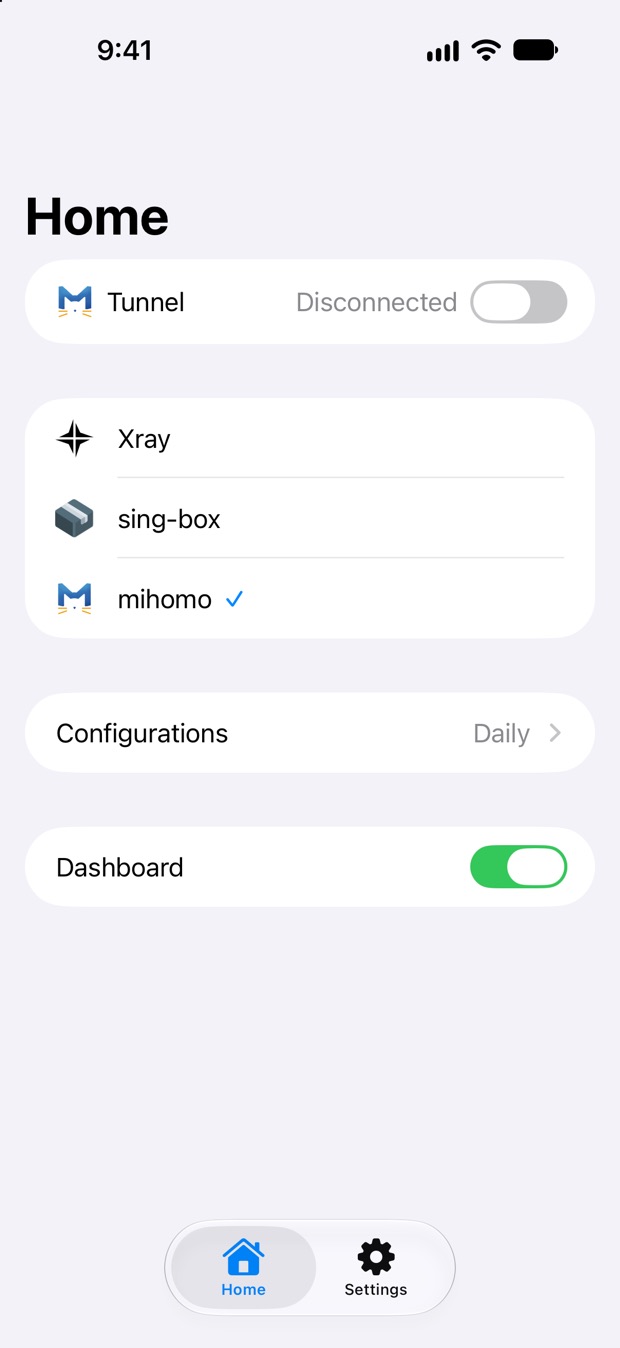
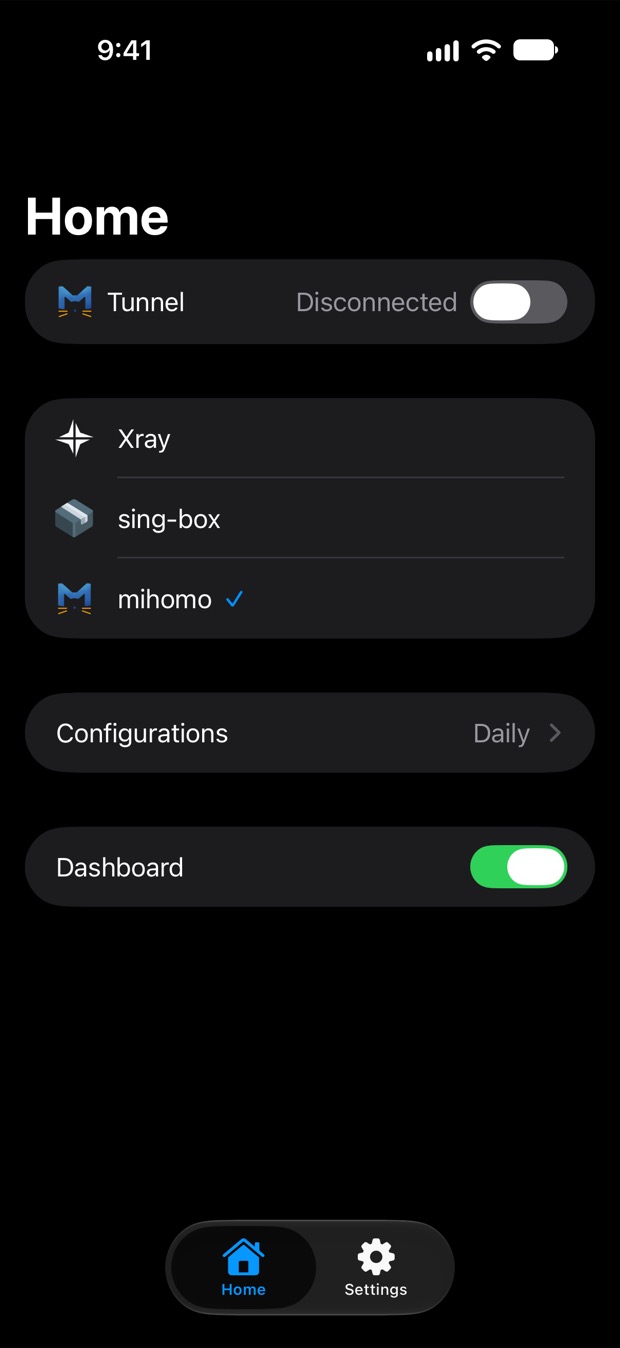

| Row | What it does |
|---|---|
| Tunnel | Starts and stops the tunnel. The icon shows the selected engine and the label shows the current status. |
| Xray, sing-box, mihomo | The engine to run. A checkmark marks the selected one. |
| Configurations | Opens the selected engine's list of configurations. The row shows the name of the active one. |
| Dashboard | Whether the dashboard opens while the tunnel is running. |
Choose an engine
Tap Xray, sing-box or mihomo. Each engine keeps its own list of configurations and remembers its own active one, so setups for all three live side by side and you can move between them freely.
Only one engine runs at a time. The engine cannot be changed while the tunnel is running — the app shows Tunnel is running and asks you to stop the tunnel first.
Add a configuration
On first launch, Everywhere creates one starter configuration for each engine, named after it. A starter sends everything out directly: it is enough to check that the tunnel comes up, and it is the template every new configuration begins with.
To add your own, tap Configurations on the Home tab, then +:
| Option | What it does |
|---|---|
| New | Asks for a name and creates a configuration from the starter template. Open it and replace the contents with your own. |
| Import from file | Picks a file from the Files app and copies its text into Everywhere. |
| Subscribe | Asks for a URL, downloads the configuration, and remembers the URL so that it can be updated later. |
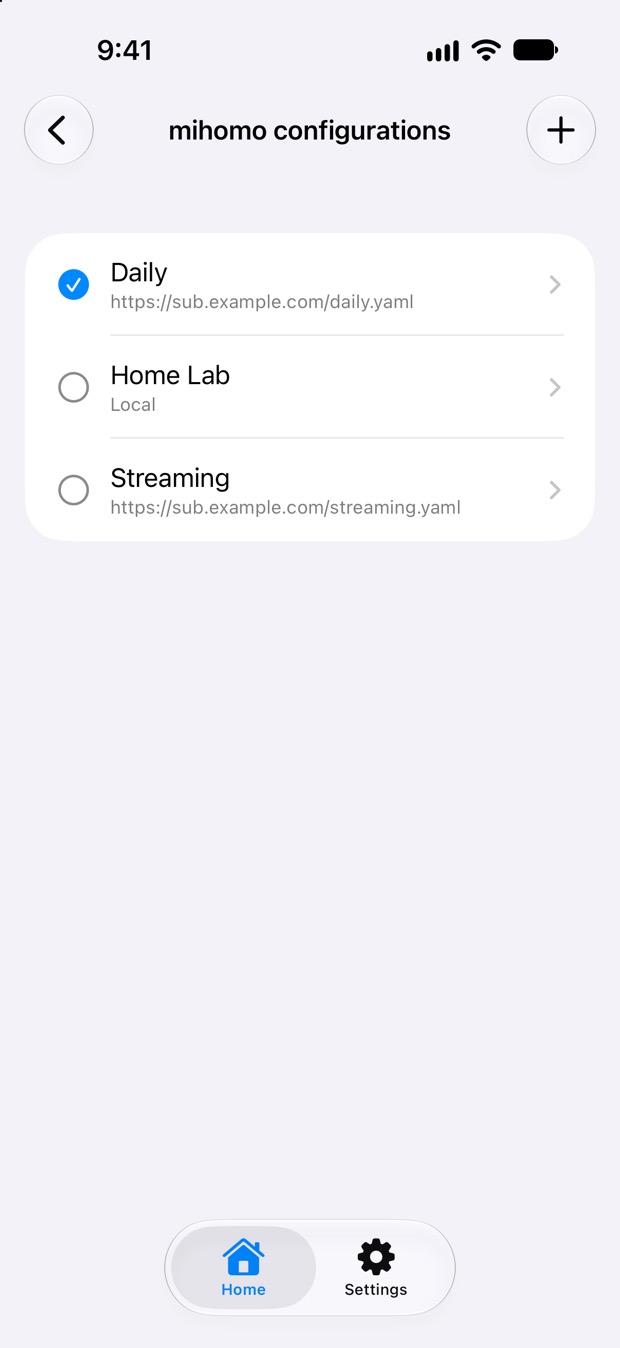
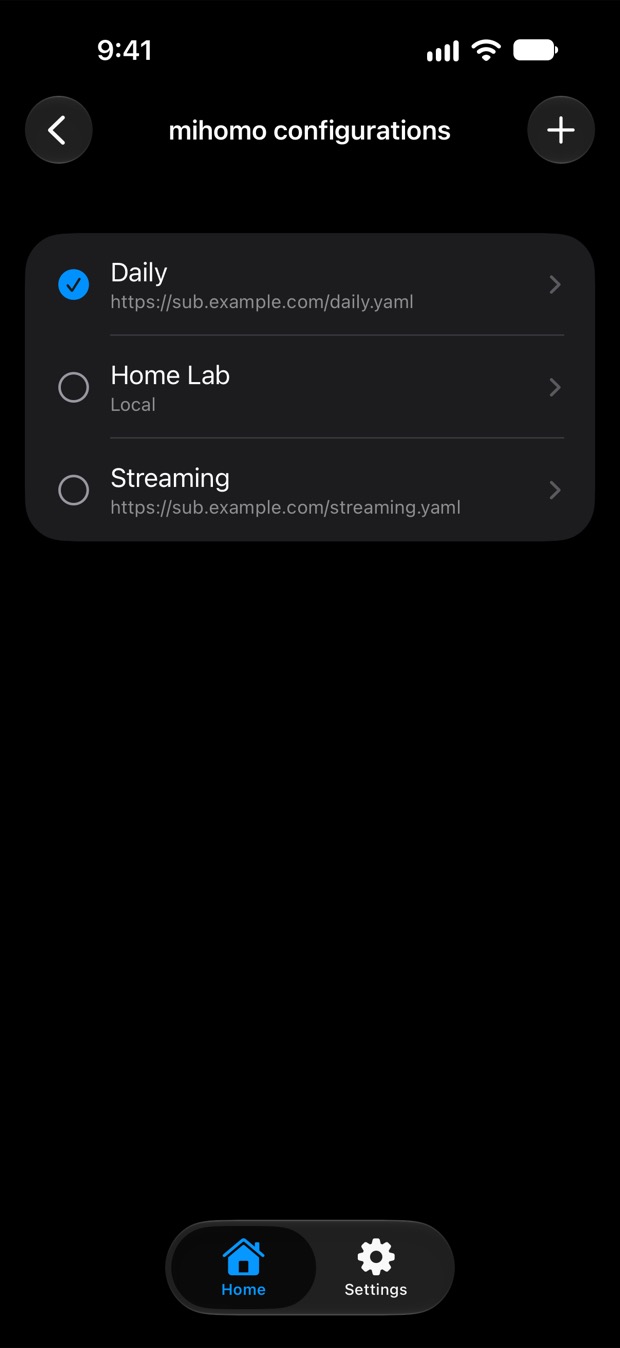
A few things to know:
- A configuration is added to the engine currently selected on the Home tab. Pick the engine first.
- The first configuration added to an engine becomes its active one automatically.
- An imported or subscribed JSON configuration that has a top-level
remarksstring is named after it. Otherwise the name comes from the file name or from the URL. - A subscription URL must return the configuration itself: UTF-8 text in the selected engine's native format, with a successful HTTP status. A list of share links is not a configuration and will not load.
- Subscription requests are sent with the user agent
Everywhere/1.0 Clash/1.11.0.
Edit a configuration
Tap a row to open it in the editor. JSON and YAML are syntax-highlighted and every line is numbered.
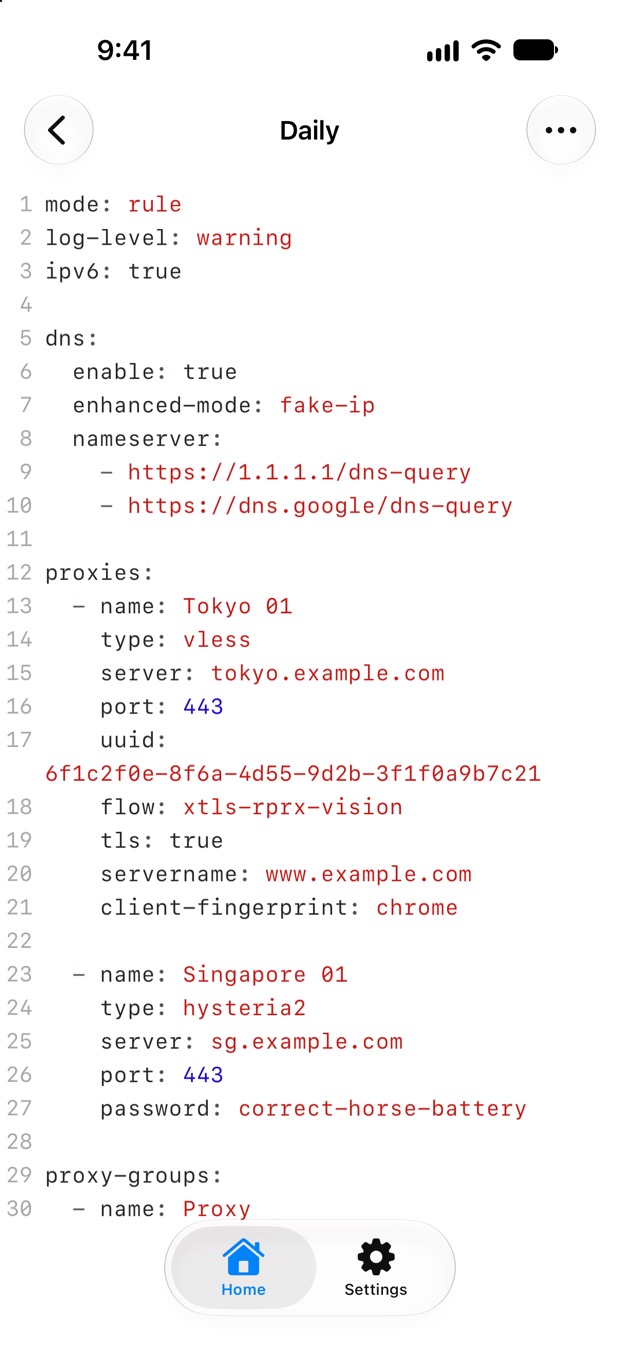
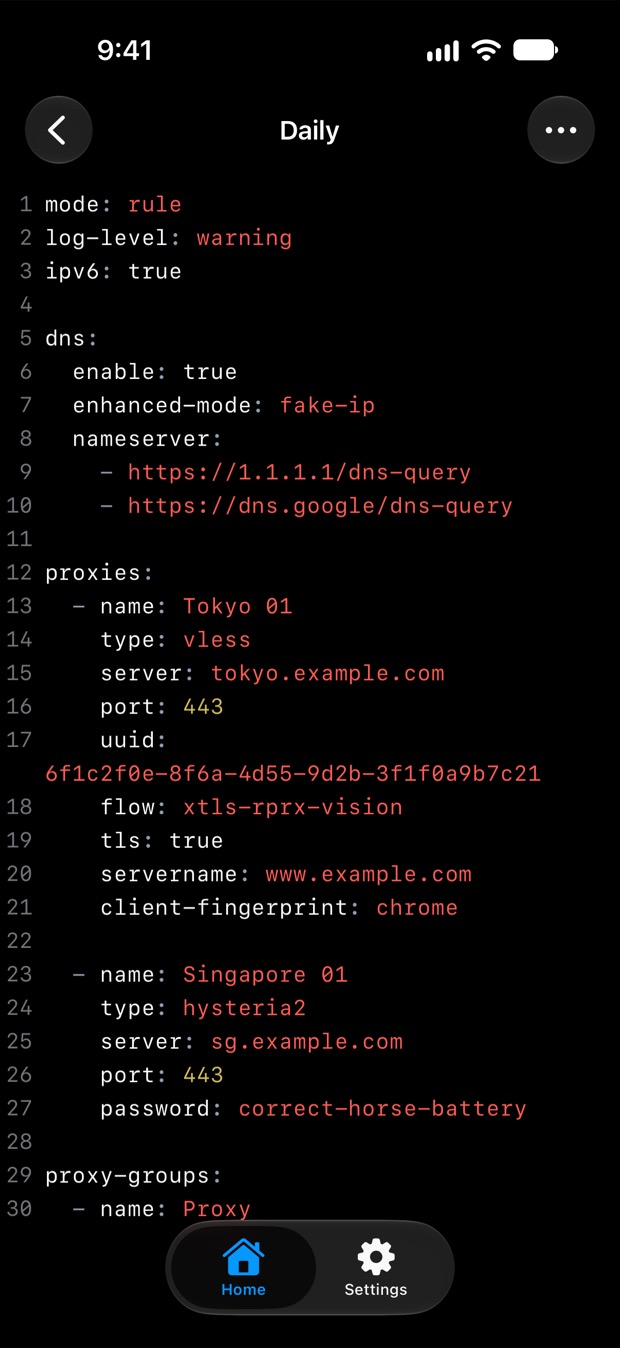
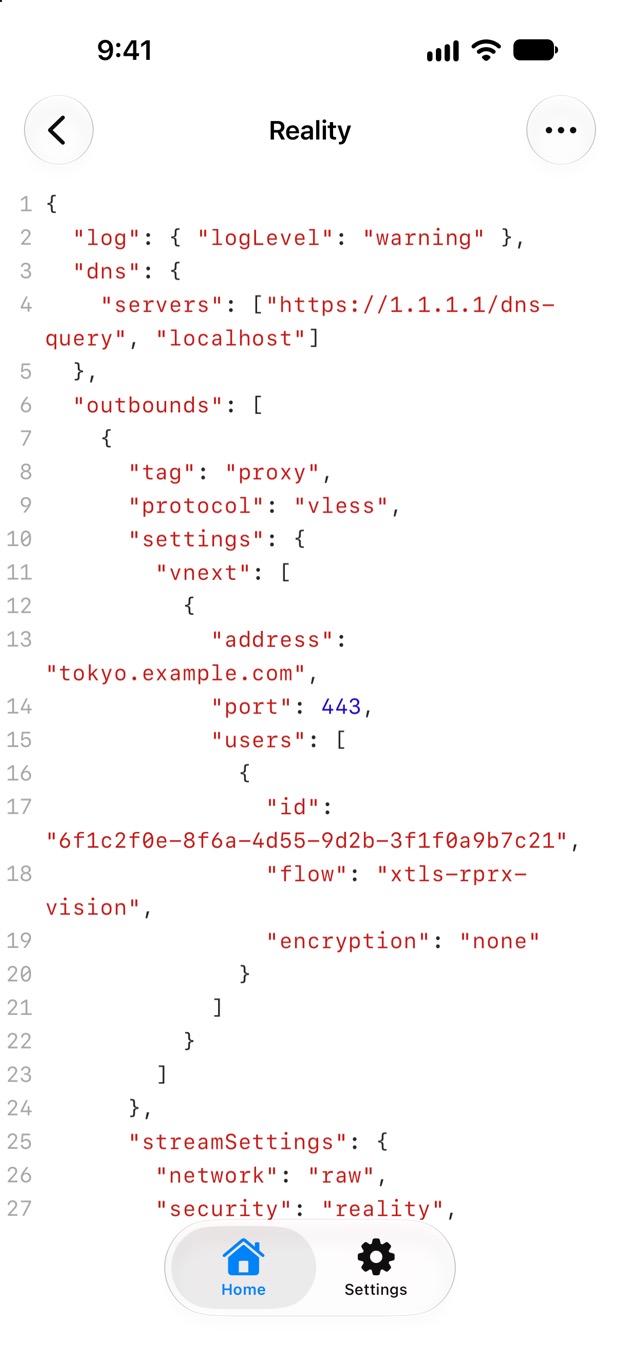
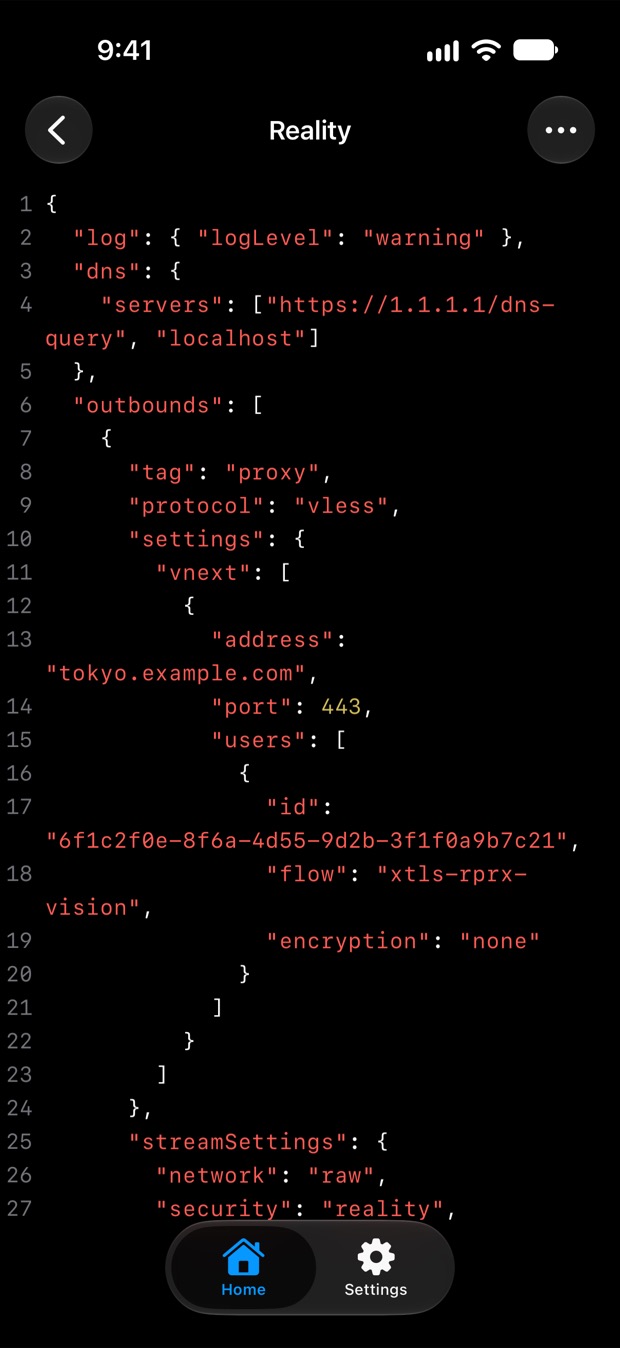
- Changes are saved as you type. There is no save button.
- ⋯ → Reset to default replaces the whole configuration with the starter template.
- A subscribed configuration can be edited like any other, but the next update replaces your edits with the downloaded text.
- The editor does not validate the configuration. The engine does that when the tunnel starts — see Connect.
TIP
A change made while the tunnel is running takes effect the next time the tunnel starts. Turn Tunnel off and on again to apply it.
Manage configurations
In the configurations list:
- Activate — tap the circle on the left of a row. Each engine has one active configuration, and that is the one the tunnel runs.
- Update — swipe left on a subscribed configuration and tap Update to download it again.
- Rename — swipe left and tap Rename.
- Delete — swipe left, tap Delete, and confirm.
While the tunnel is running, you cannot switch the active configuration or delete the active one. Stop the tunnel first.
Connect
Turn on Tunnel on the Home tab.
The first time, iOS asks for permission to add a VPN configuration. Tap Allow and confirm with your passcode. From then on the switch connects immediately.
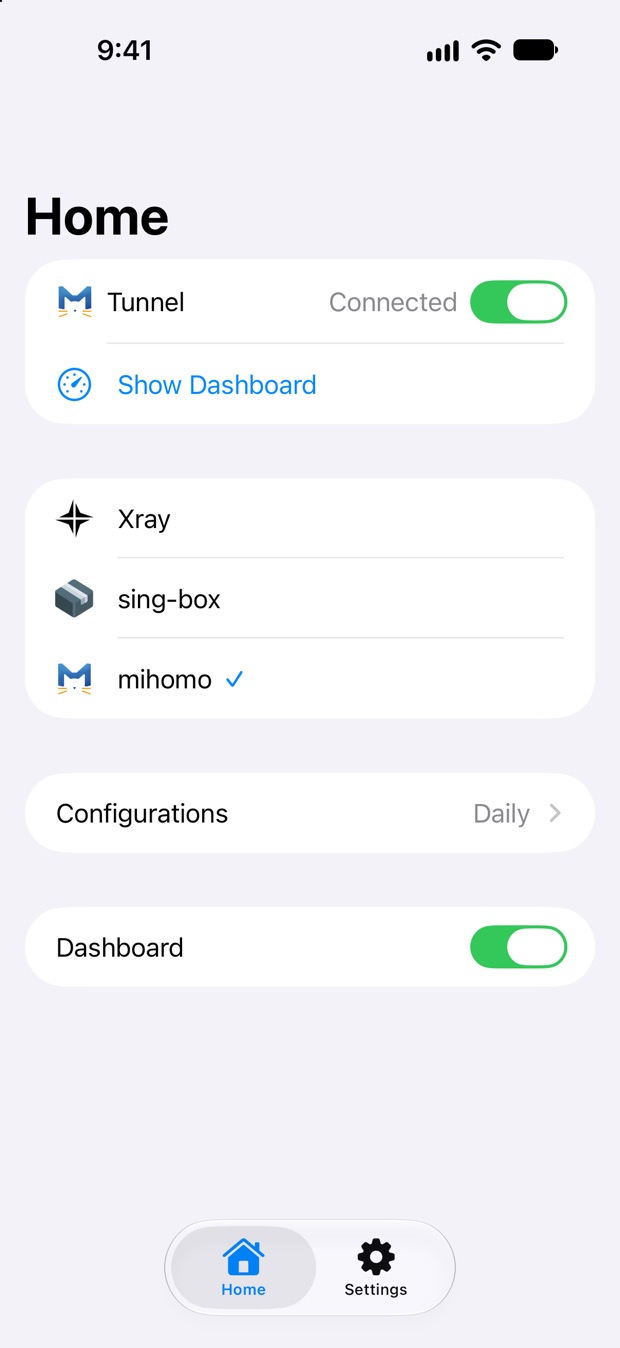
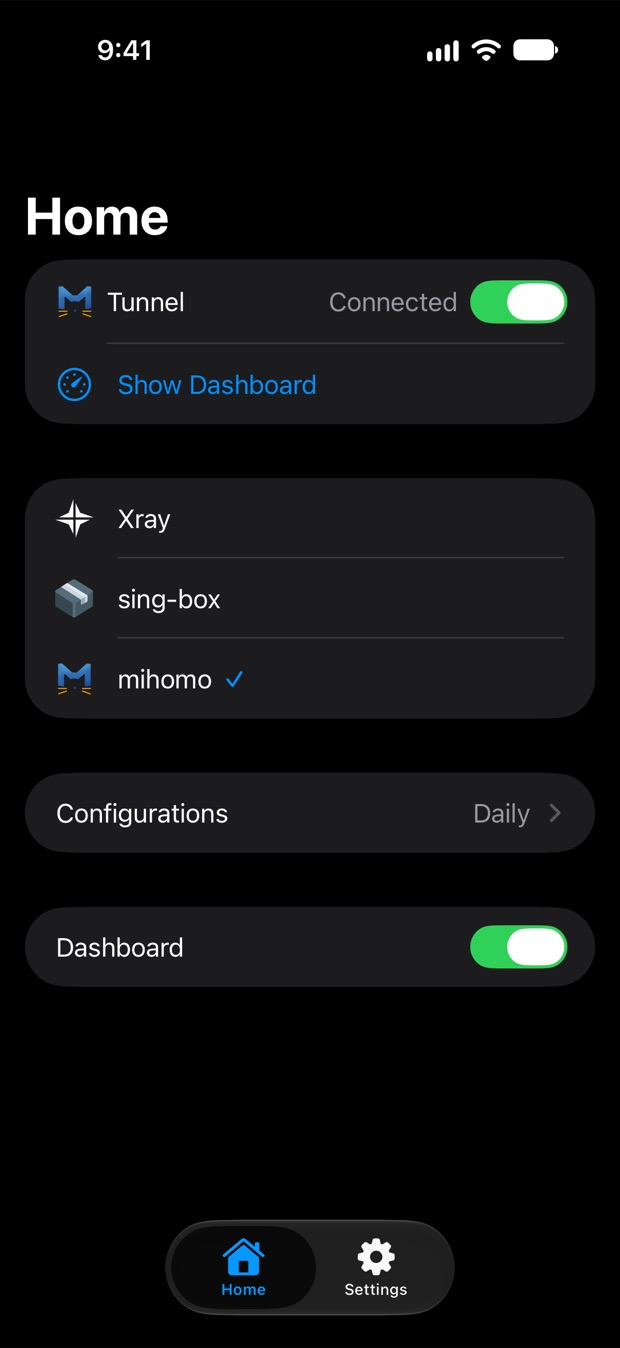
The label next to the switch follows the tunnel: Connecting, Connected, Disconnecting, Disconnected.
- The switch is unavailable when the selected engine has no active configuration, and while the tunnel is changing state.
- If the engine rejects the configuration, the tunnel stops and a Connection failed alert shows the engine's own error message. It usually names the option at fault — fix it in the editor and connect again.
- To disconnect, turn the switch off, or tap the power button on the dashboard.
The dashboard
While the engine is running, the dashboard takes the place of the Home and Settings tabs. It has five tabs of its own: Overview, Proxies, Connections, Rules and Logs.
- The house button at the top left of Overview returns to the Home tab without stopping the tunnel. Tap Show Dashboard there to come back.
- The power button at the top right stops the tunnel.
To run the tunnel without the dashboard, turn off Dashboard on the Home tab. Changing that switch while connected restarts the tunnel.
The dashboard looks the same for all three engines. Where an engine does not offer a feature, the control is labelled Unavailable on … rather than hidden — the table below lists the differences.
Overview
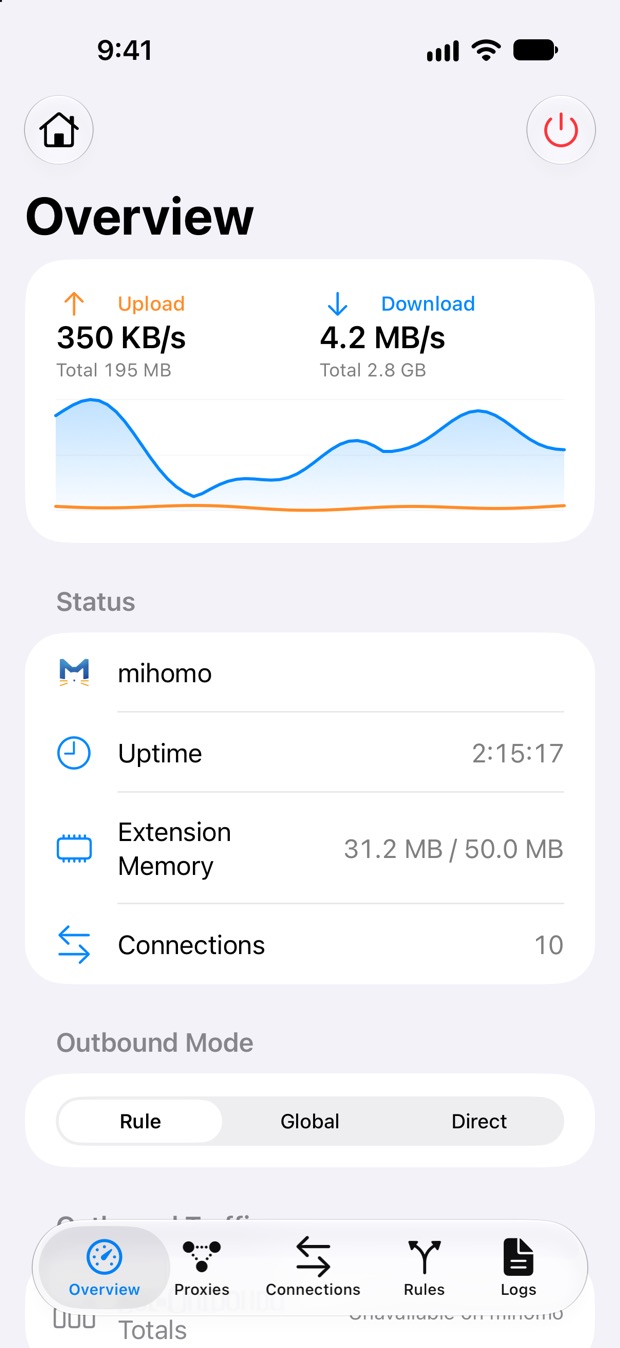
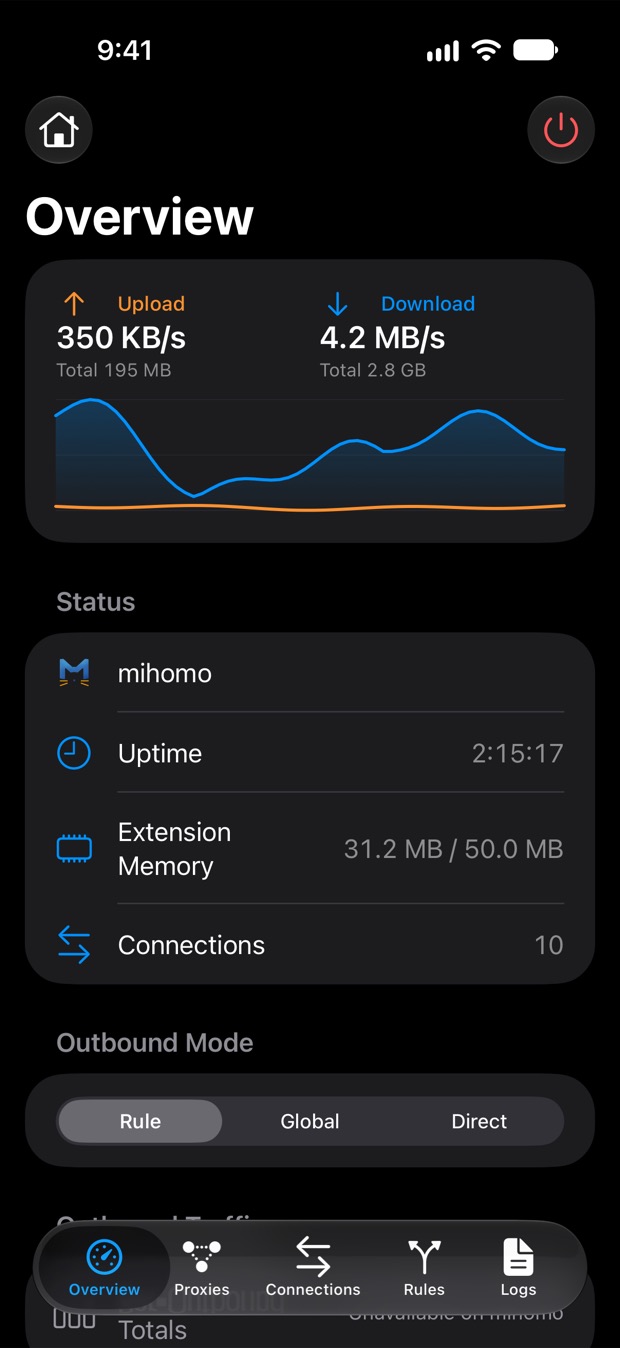
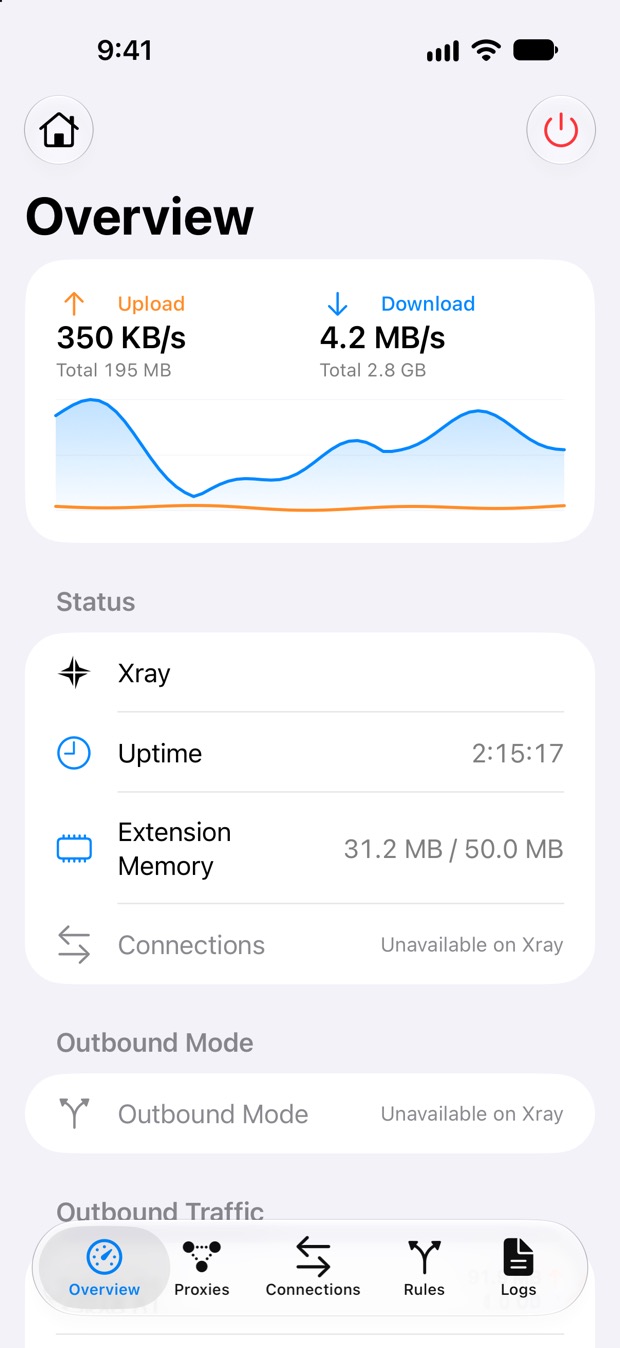
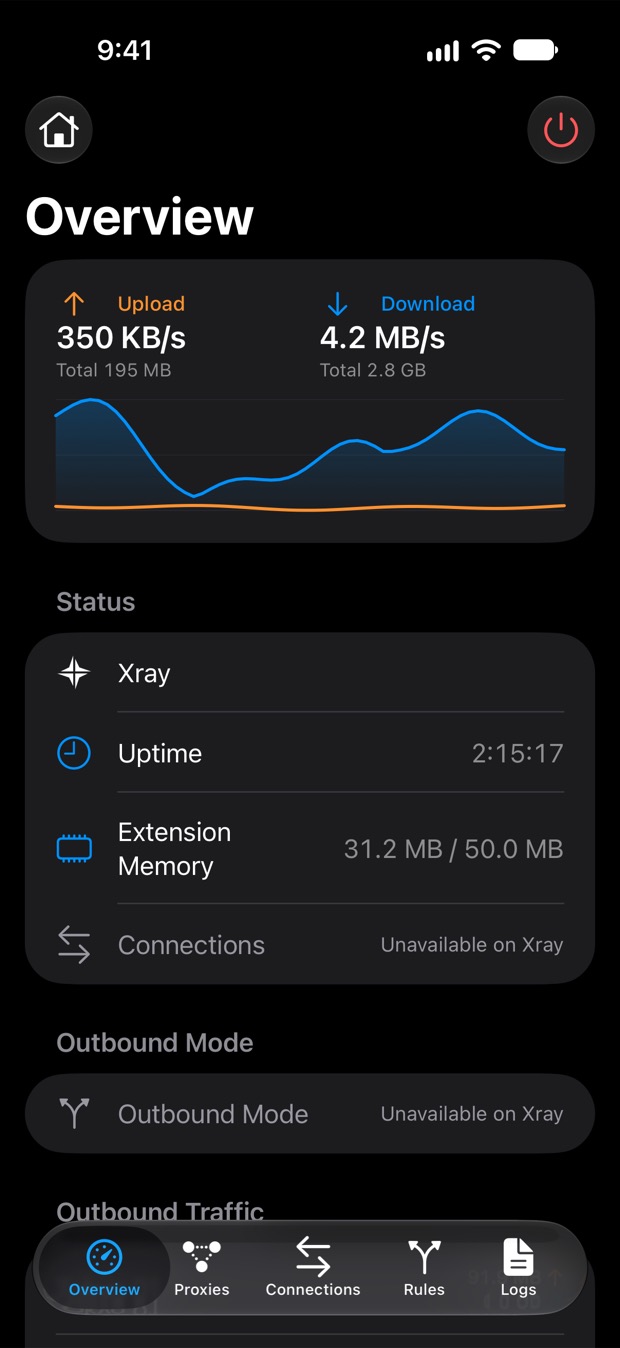
| Section | What it shows |
|---|---|
| Traffic | Current upload and download speed, the totals since the tunnel started, and a chart of recent throughput. |
| Status | The running engine, Uptime, Extension Memory — how much memory the tunnel is using, out of what the system allows it — and the number of open connections. |
| Outbound Mode | Switches between the modes the engine offers, such as Rule, Global and Direct. |
| Outbound Traffic | Upload and download totals for each outbound. |
| Tools | Flush Fake-IP Cache, Flush DNS Cache, Update GEO Databases, and DNS Query, which resolves a name through the engine and lists the answers. |
Proxies
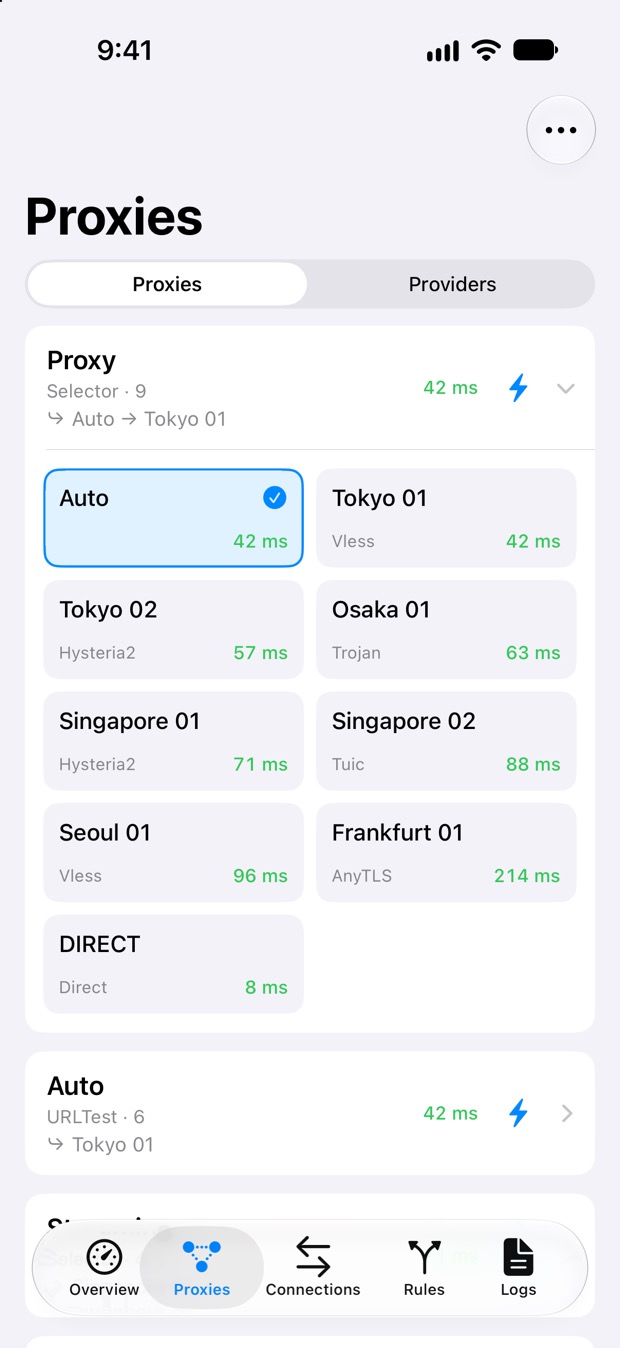
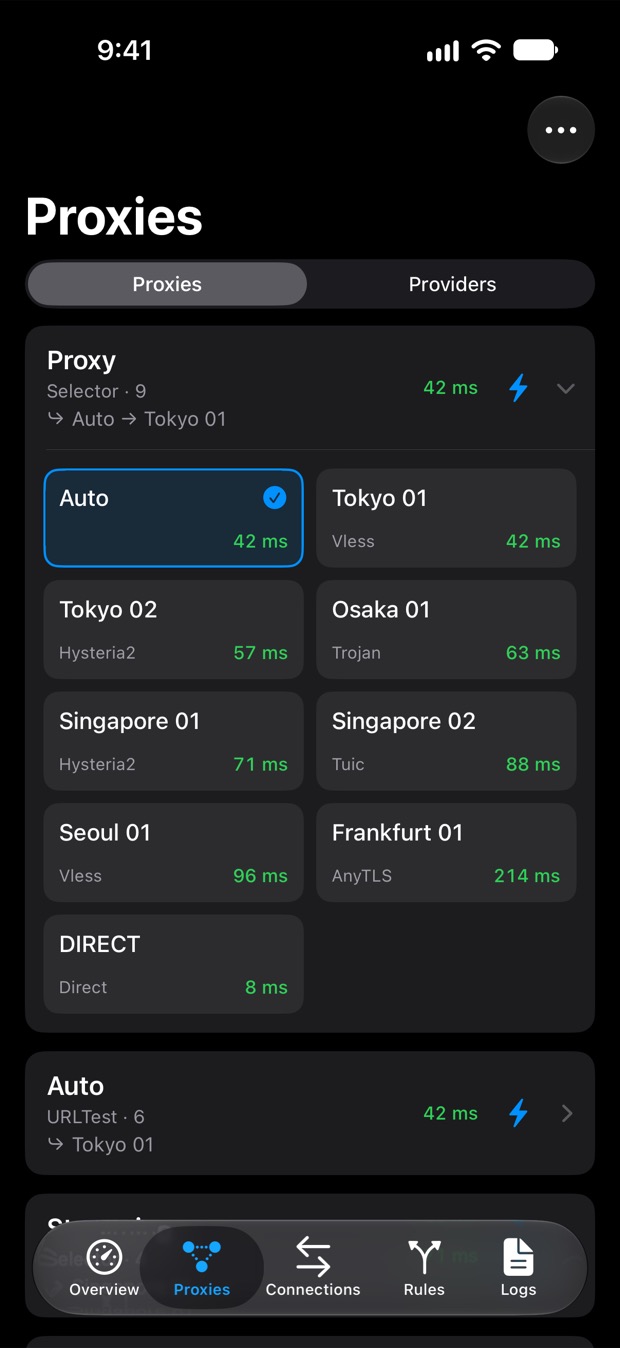
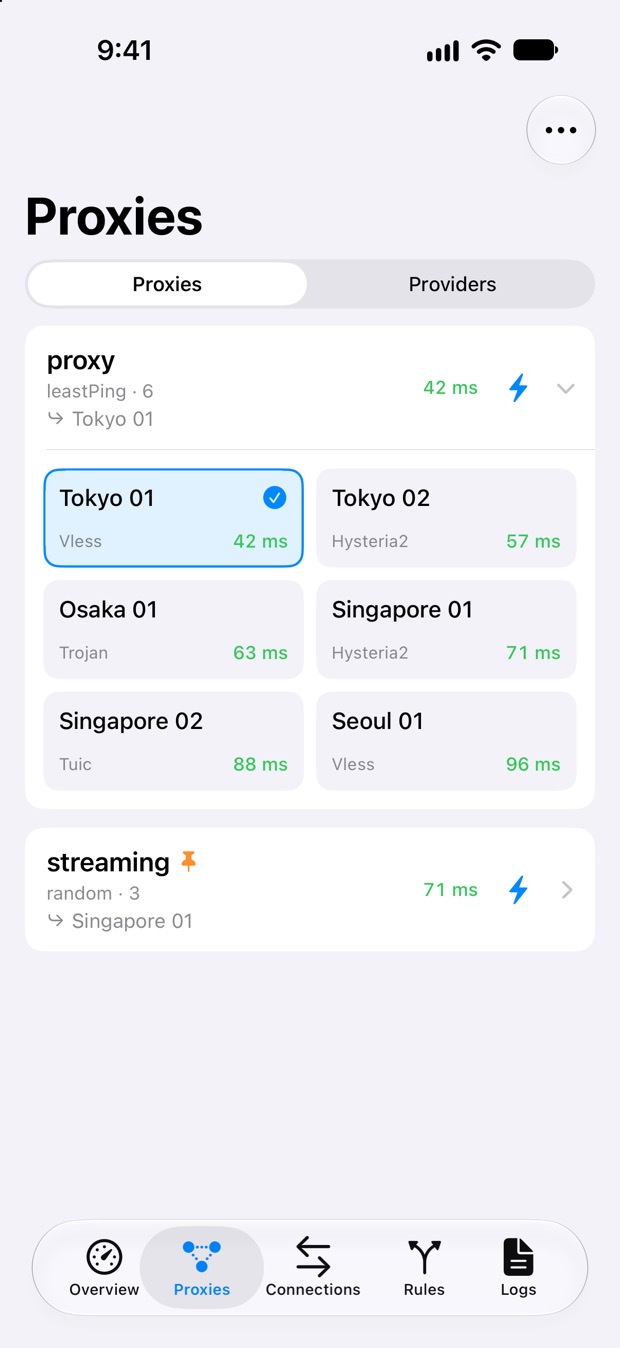
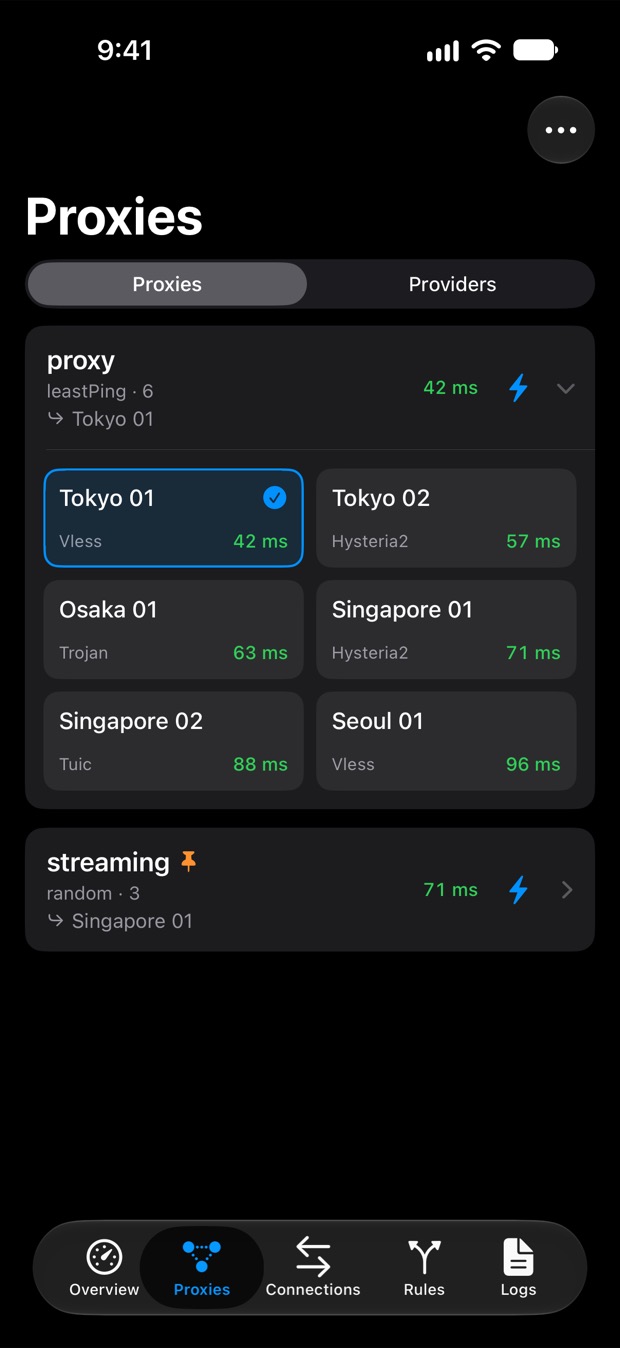
Every card is a group. Its header shows the group's name, type and size, the route currently in use — for example Auto → Tokyo 01 — and the latency of the node behind it.
- Expand a group by tapping its header, then tap a node to switch to it.
- Test latency for a whole group with the bolt button. Touch and hold a node and choose Test Latency to test only that one. Results are green under 400 ms, orange under 800 ms and red above; a node that does not answer shows Timeout.
- Pin a node in a group that normally chooses by itself — a URL-test or fallback group, or an Xray balancer — by tapping it. A pin icon marks the group. Tap Resume Auto to hand the choice back.
- Search filters groups and nodes by name.
- The ⋯ menu sorts nodes by configuration order, latency or name, hides unavailable nodes, collapses all groups, and opens the dashboard settings.
The Providers segment lists mihomo's proxy providers, with their node count, the usage and expiry a subscription reports, and the time of the last update. The bolt button runs a health check; the circular arrow updates the provider.
Switching nodes on Xray-core
Xray-core switches nodes through routing.balancers. Each balancer appears as a group, and choosing one of its outbounds pins the balancer to it. The choice is remembered for that configuration. A configuration without balancers still lists every outbound, for latency tests and traffic totals.
Connections
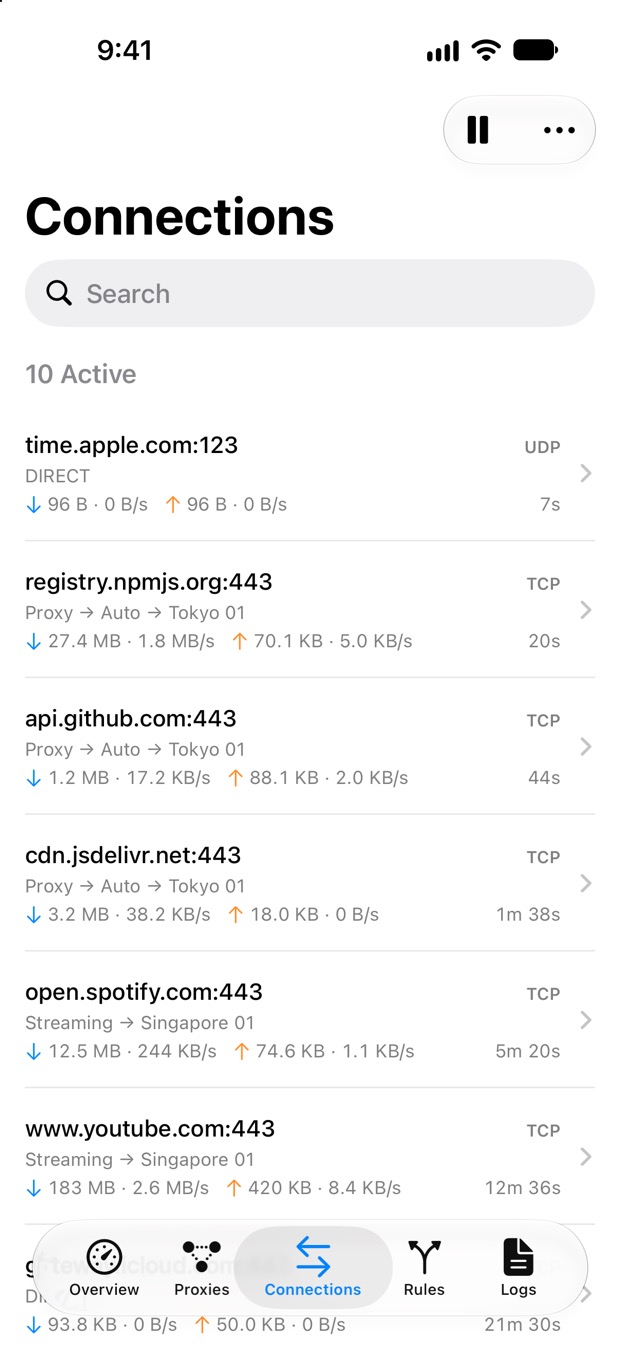
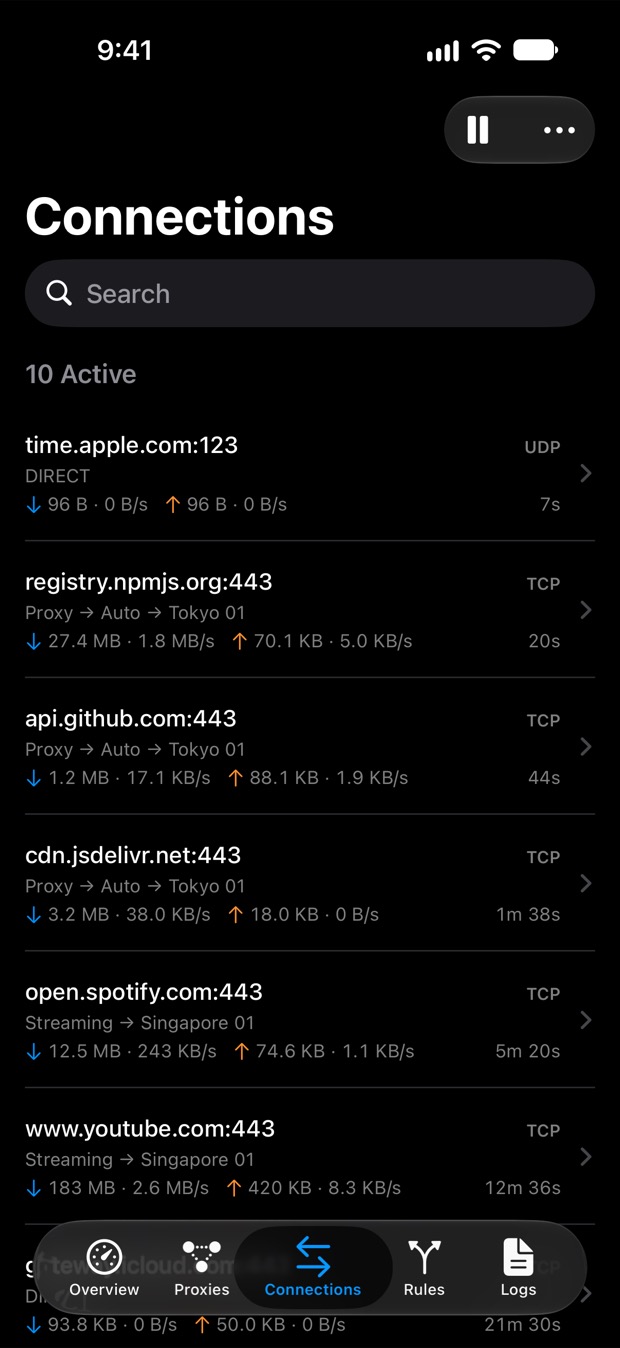
Every open connection, with its destination, network, the chain of groups and nodes it travels through, the amount transferred, its current speed and its age. Available on sing-box and mihomo.
- Search matches the destination, the chain, the rule and the source address.
- The pause button freezes the list so that you can read it. The ⋯ menu sorts it — by newest, speed, amount transferred or host — and offers Close All Connections.
- Swipe left on a row to close that connection.
- Tap a row for the details: destination and source addresses, the rule that matched, the full chain and the traffic counters.
Rules
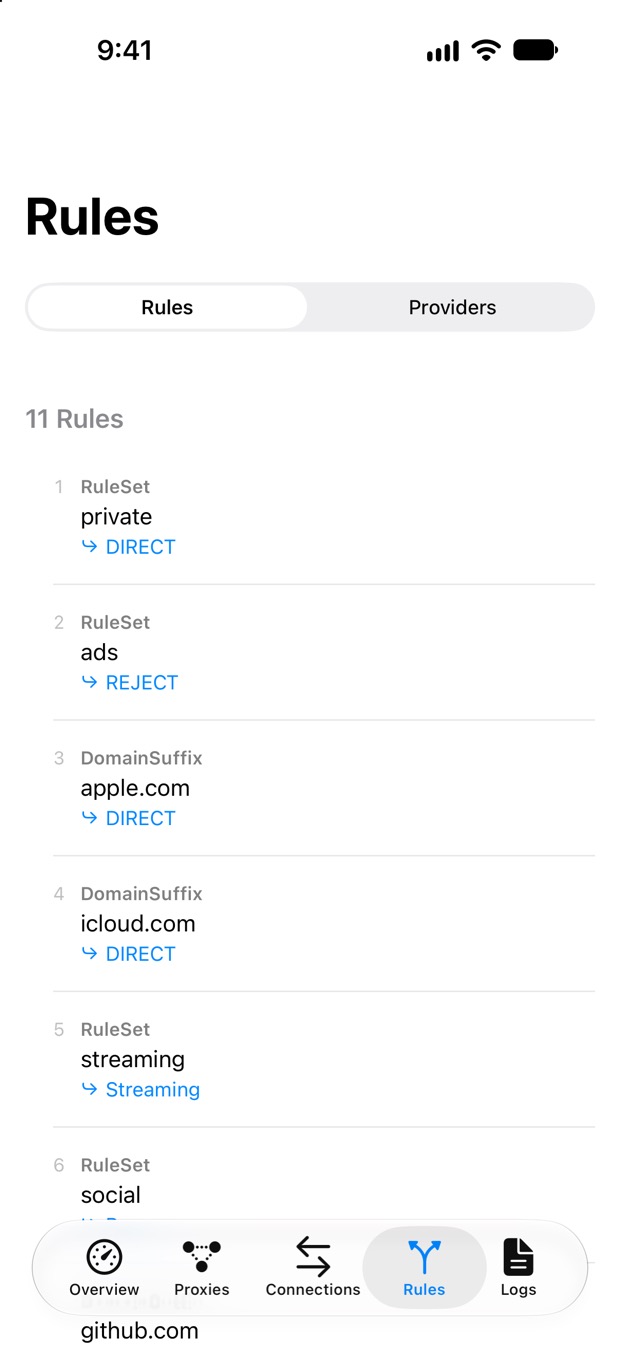
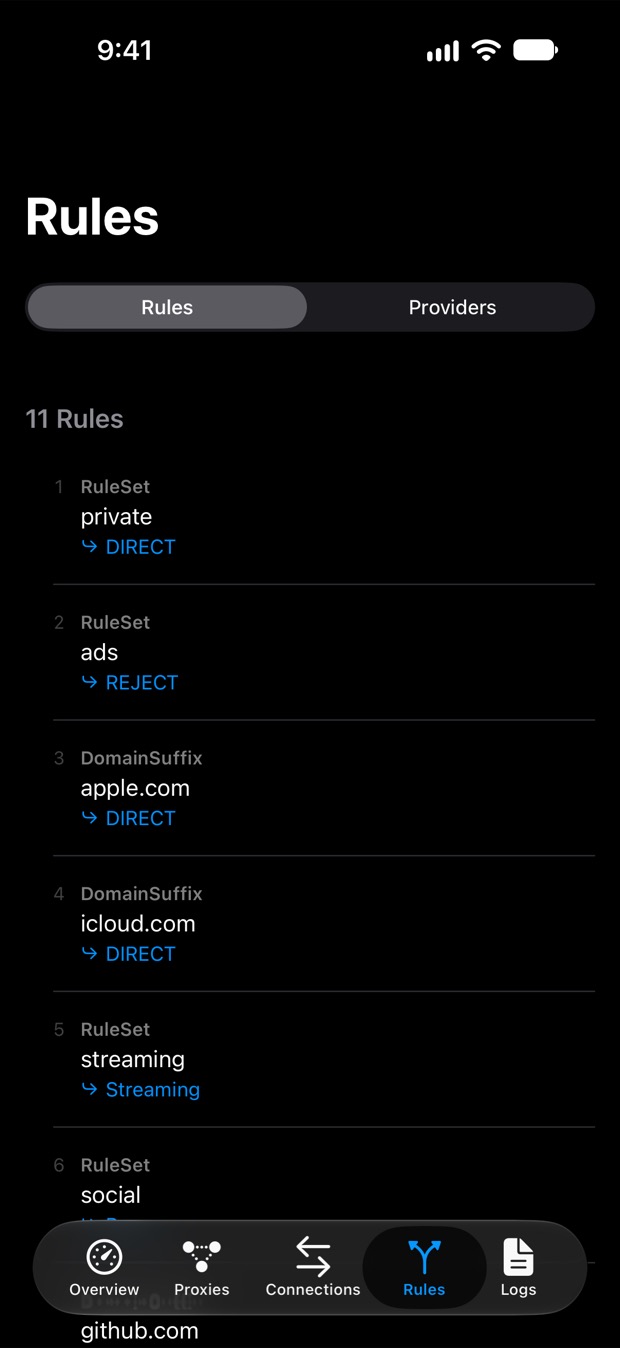
The routing rules of the running configuration, in the order the engine evaluates them: type, value and target. Search matches all three. Pull down to refresh.
The Providers segment lists mihomo's rule providers with their behavior, format, rule count and last update, and updates them one at a time.
Logs
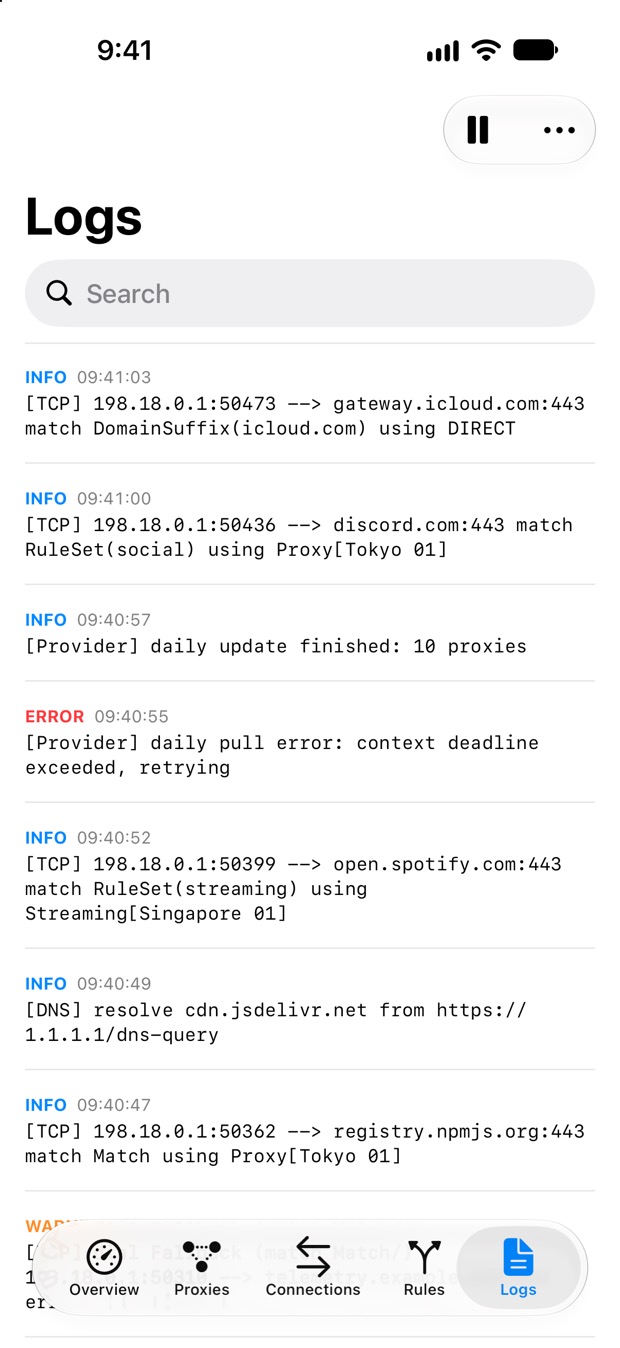
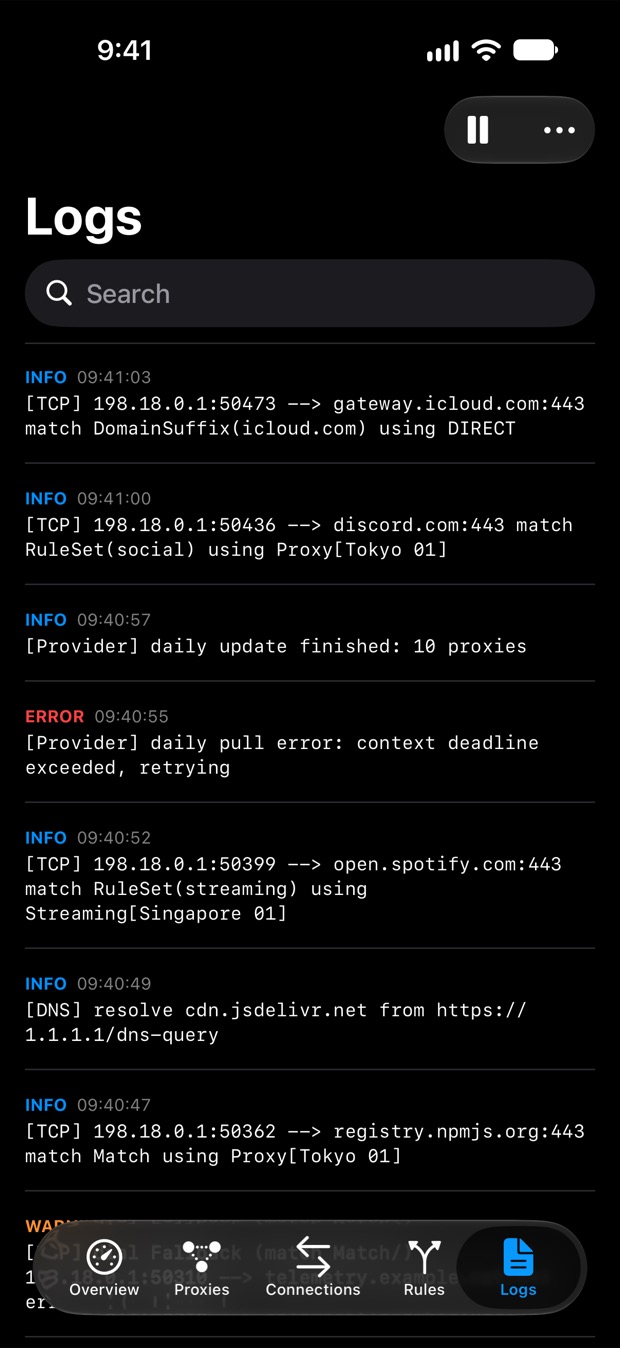
The engine's log, newest entry first. The stream starts when you first open this tab, and the app keeps the latest 500 entries.
- Search filters by text; the pause button freezes the list.
- The ⋯ menu sets the Log Level — Debug, Info, Warning or Error — and offers Copy All and Clear.
- Touch and hold an entry to copy it.
What each engine supports
| Feature | Xray-core | sing-box | mihomo |
|---|---|---|---|
| Switch node | ✓ (balancers) | ✓ (selectors) | ✓ |
| Pin a node in an automatic group | ✓ | — | ✓ |
| Latency test | ✓ | ✓ | ✓ |
| Live speed and totals | ✓ | ✓ | ✓ |
| Rules | ✓ | ✓ | ✓ |
| Logs | ✓ | ✓ | ✓ |
| Connections (list, close) | — | ✓ | ✓ |
| Outbound mode | — | ✓ | ✓ |
| DNS query, flush DNS and fake-IP caches | — | ✓ | ✓ |
| Proxy and rule providers | — | — | ✓ |
| Update GEO databases | — | — | ✓ |
| Per-outbound traffic totals | ✓ | — | — |
Settings
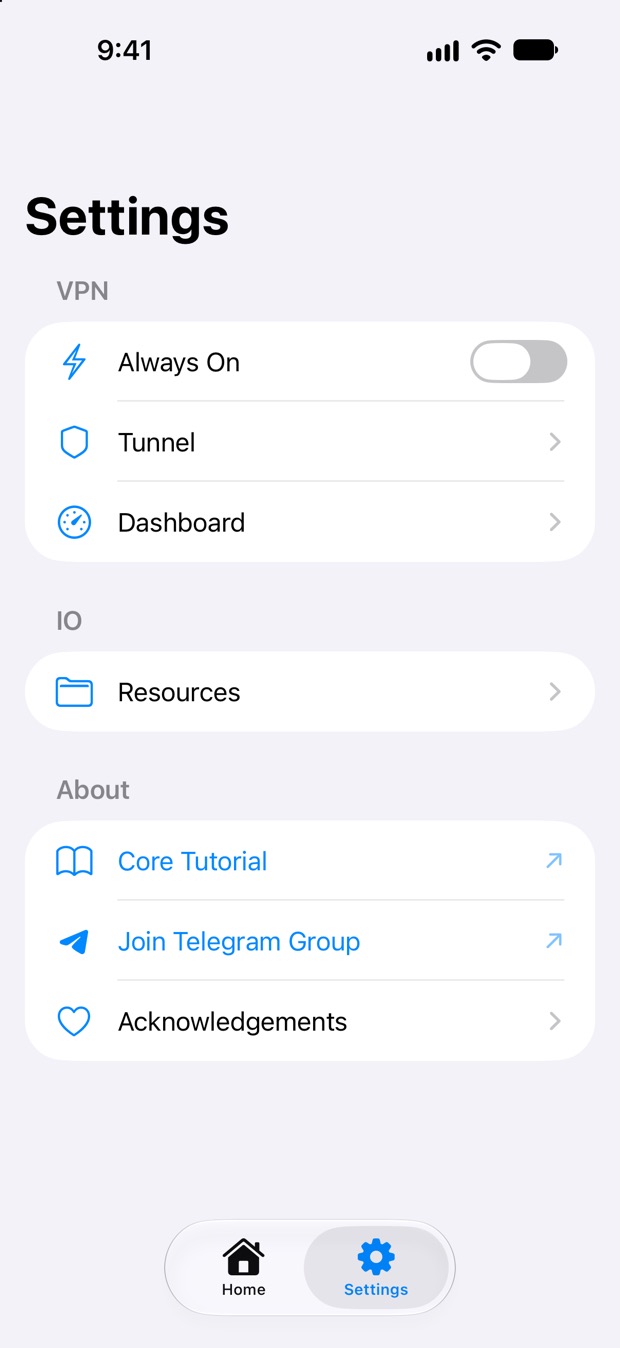
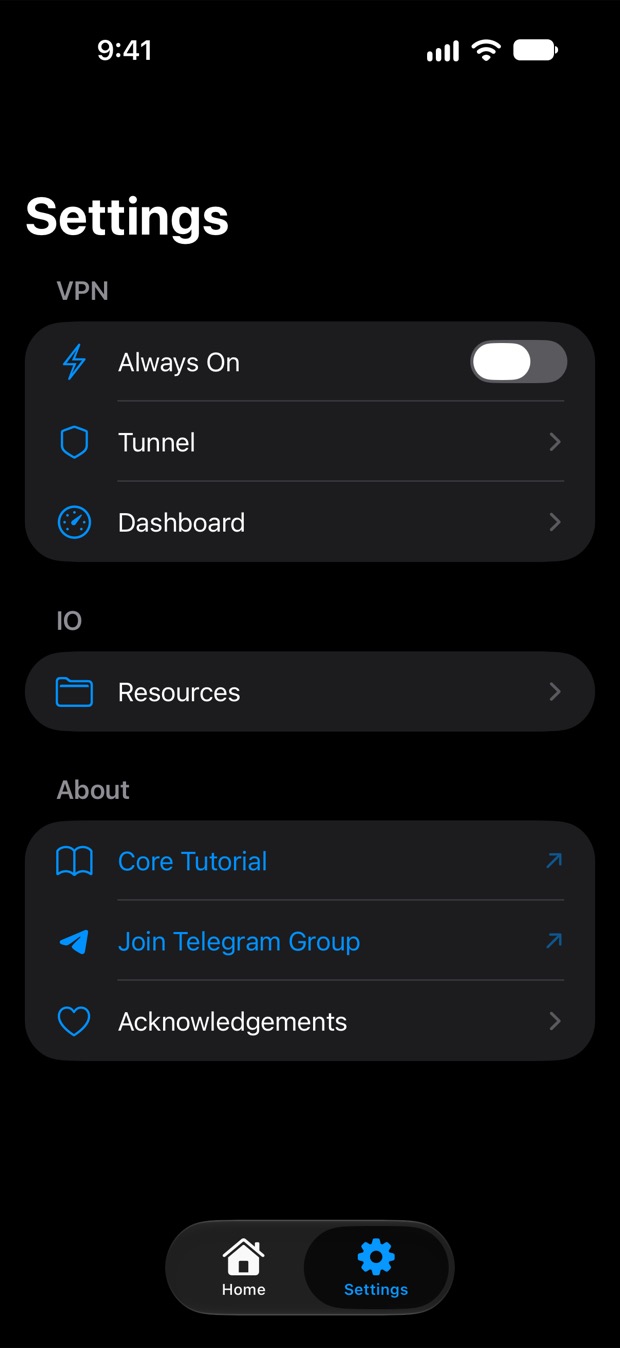
Always On
With Always On, the system starts the tunnel by itself whenever the device has a network connection, and brings it back after an interruption. Turning the switch on or off while connected restarts the tunnel.
If a connection attempt fails while Always On is active, Everywhere suspends it so that the system does not retry in a loop. Fix the configuration, then turn Tunnel on again.
Tunnel
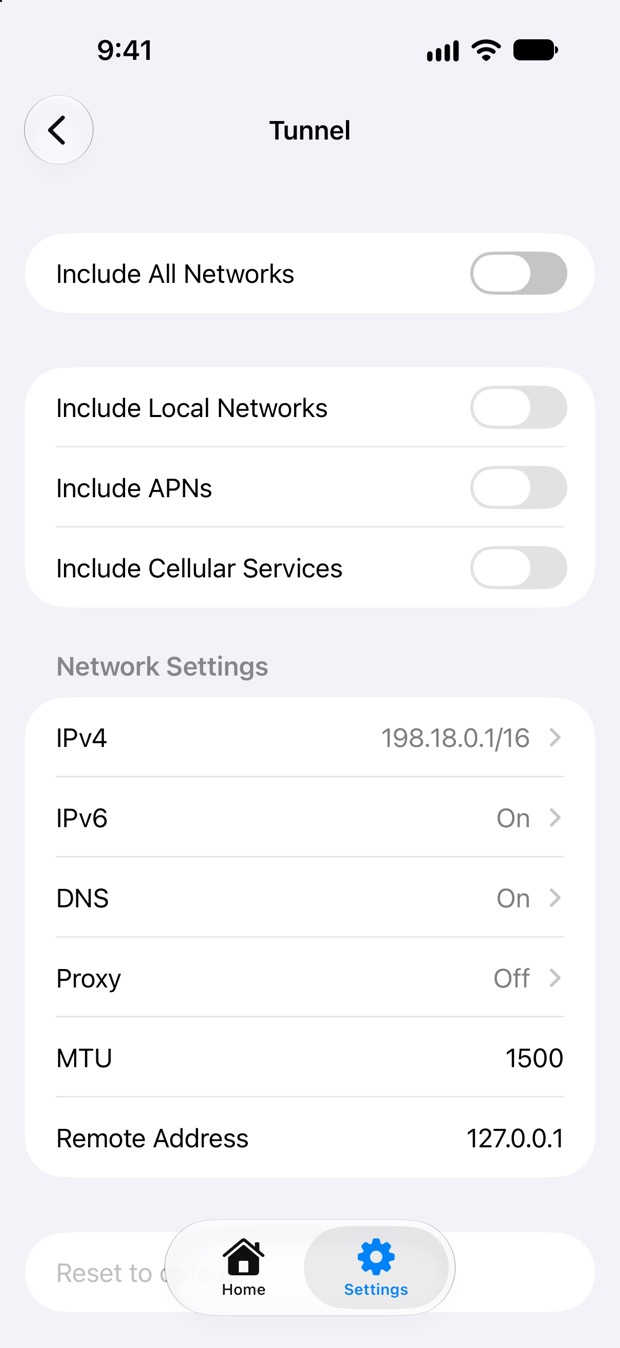
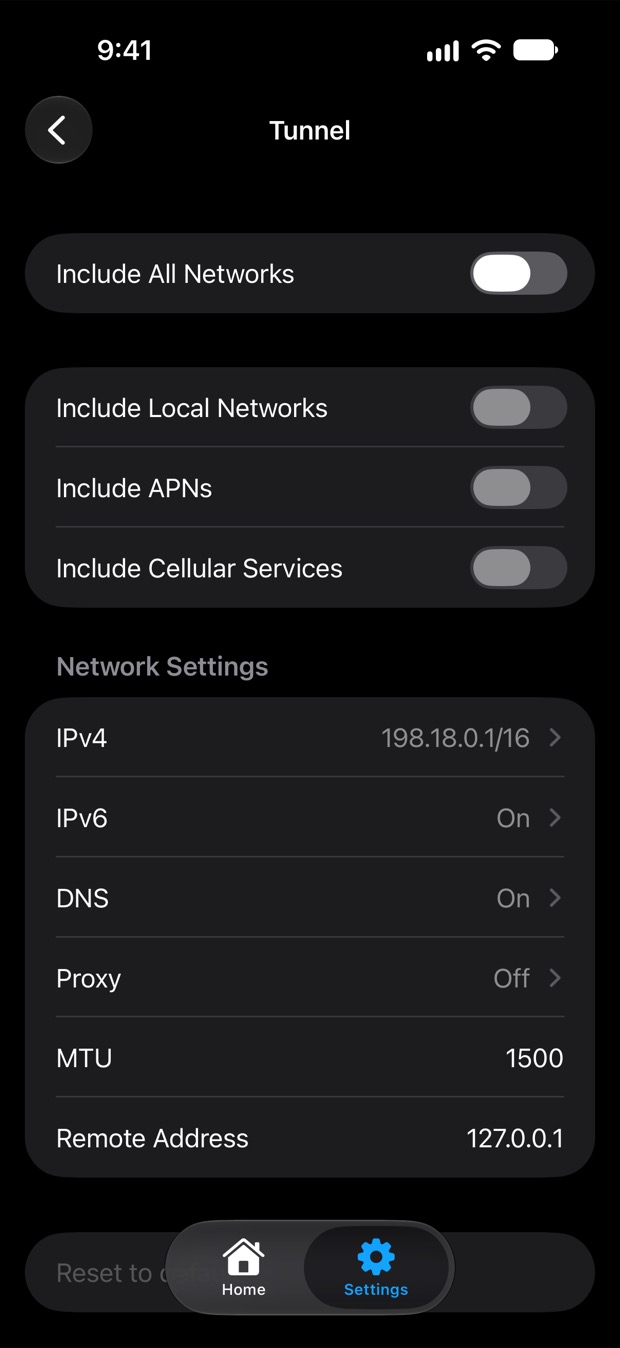
These settings decide which traffic enters the tunnel and how the tunnel interface is addressed. A change made while connected restarts the tunnel so that it applies at once.
| Setting | Default | What it does |
|---|---|---|
| Include All Networks | Off | Has the system send all traffic through the tunnel and block what would otherwise bypass it. |
| Include Local Networks | Off | With Include All Networks on, also sends traffic for the local network through the tunnel. |
| Include APNs | Off | With Include All Networks on, also sends Apple Push Notification traffic through the tunnel. Requires iOS 17. |
| Include Cellular Services | Off | With Include All Networks on, also sends carrier services such as Wi-Fi calling through the tunnel. Requires iOS 16.4. |
Under Network Settings:
| Setting | Default | What it does |
|---|---|---|
| IPv4 | 198.18.0.1/16, route 0.0.0.0/0 | The tunnel's IPv4 addresses, the routes sent into the tunnel, and the routes kept out of it. |
| IPv6 | On, fd00::1/126, route ::/0 | The same for IPv6. Turn it off for an IPv4-only tunnel. |
| DNS | On, 1.1.1.1 and 8.8.8.8 | The resolvers the system uses while the tunnel is up. |
| Proxy | Off | A system HTTP or HTTPS proxy, or proxy auto-configuration, for the tunnel. |
| MTU | 1500 | The tunnel's MTU, from 1280 to 9000. |
| Remote Address | 127.0.0.1 | The address reported to the system as the tunnel's remote endpoint. |
Reset to default restores everything under Network Settings.
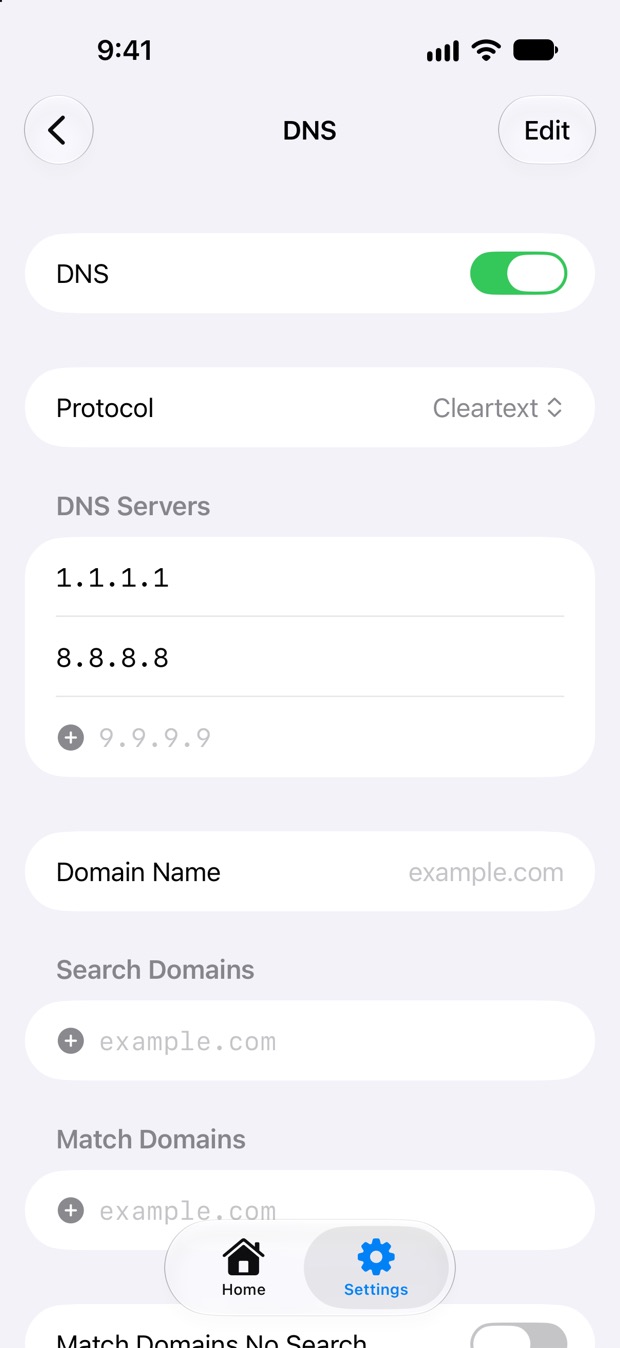
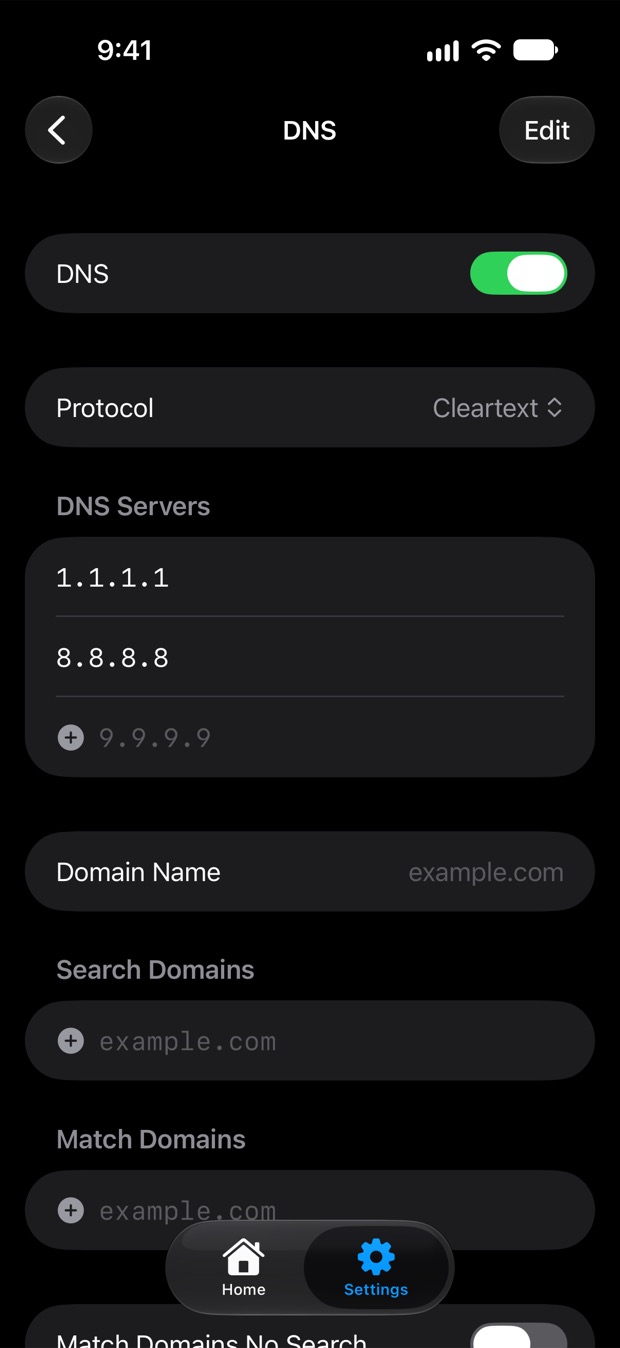
The DNS page sets the protocol — Cleartext, TLS with a server name, or HTTPS with a server URL — the server addresses, and the optional domain name, search domains and match domains. Queries to these resolvers travel through the tunnel, where the engine's own DNS and routing rules handle them.
Dashboard
| Setting | Default | What it does |
|---|---|---|
| Latency Test URL | https://www.gstatic.com/generate_204 | The URL a latency test requests. |
| Close Connections on Switch | On | When you switch nodes, closes the connections going through that group so that they reconnect through the new node. |
The same page opens from the ⋯ menu on the Proxies tab.
Resources
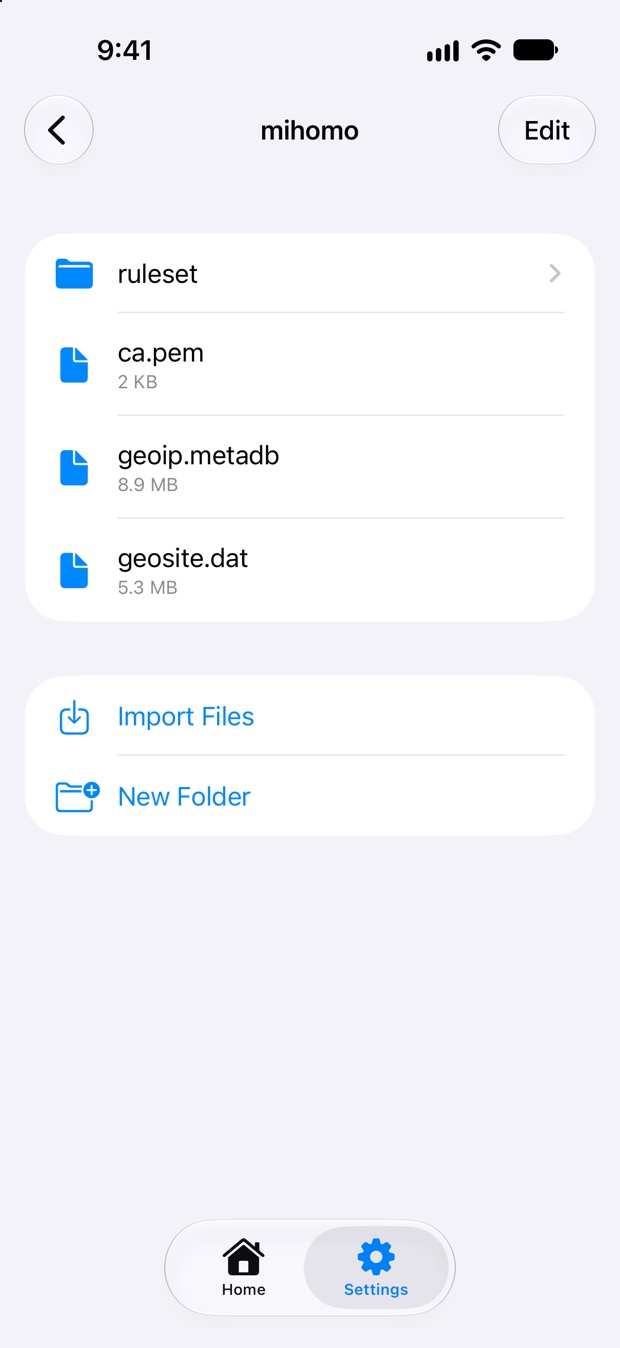
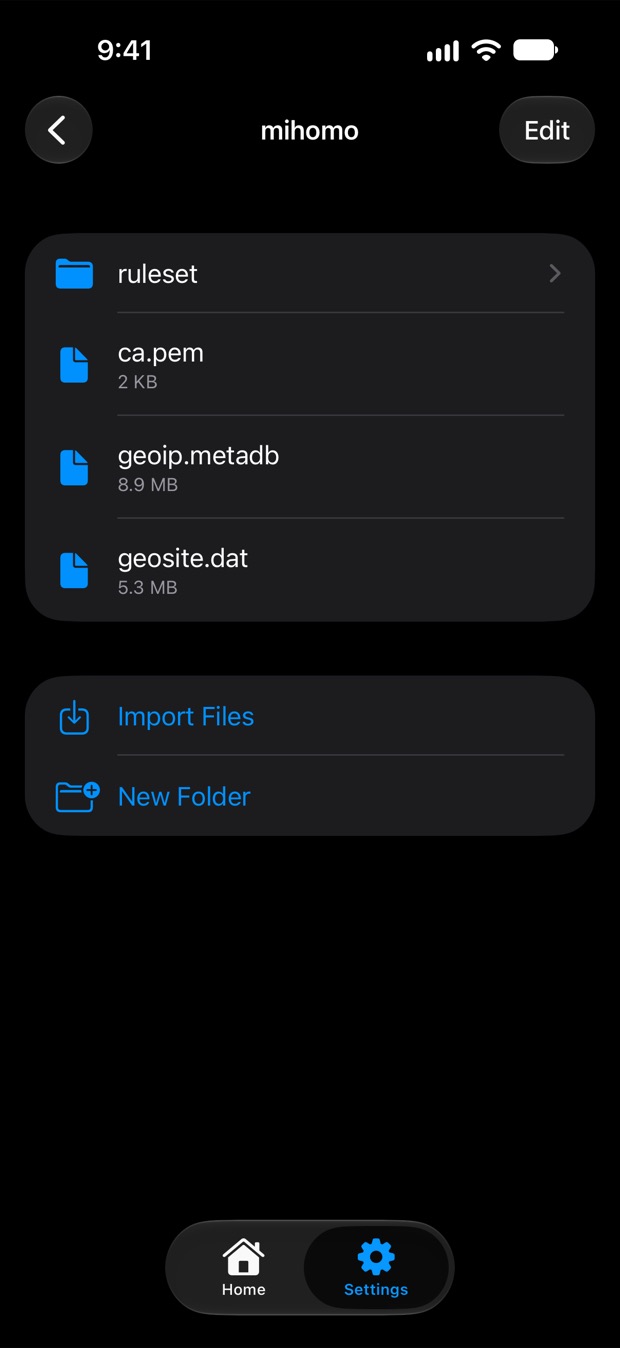
Resources is a file browser with one folder per engine, for the files a configuration refers to — geo databases, rule sets, certificates. Tap Import Files to copy files in from the Files app, or New Folder to organize them. Swipe left to delete; a folder must be empty before it can be deleted.
Each engine sees only its own folder:
| Engine | How the folder is used |
|---|---|
| Xray-core | The asset and certificate location. geoip.dat, geosite.dat and other data files are looked up here. |
| sing-box | The working directory. Relative paths in the configuration resolve against it. |
| mihomo | The home directory. Geo databases, provider files and relative paths live here. |
About
Links to this site and to the Telegram group, and the acknowledgements for the open-source projects Everywhere is built on.
Troubleshooting
| Symptom | What to do |
|---|---|
| The Tunnel switch is greyed out | The selected engine has no active configuration. Open Configurations and add or activate one. |
| Tunnel is running | Engines and active configurations cannot change while connected. Stop the tunnel first. |
| Connection failed with an error message | The message comes from the engine. Find the option it names in your configuration and compare it with the guide for that engine. |
| Tunnel reset after timing out | The tunnel did not finish connecting within 30 seconds and was stopped. Check the configuration and connect again. |
| Connected, but no dashboard | Turn on Dashboard on the Home tab, or tap Show Dashboard. |
| Can't reach the core on Overview | The dashboard lost contact with the engine. Stop the tunnel and start it again. |
| A control says Unavailable on … | The running engine does not offer that feature. See What each engine supports. |
| Proxies lists nodes but cannot switch them on Xray-core | Define routing.balancers in the configuration. |
| A subscription fails to update | The server must answer with a successful HTTP status and UTF-8 text. Open the URL in a browser to check what it returns. |
Still stuck? Ask in the Telegram group.